
Google Business Profile Photos for Restaurants: Sizes, Types & Tips
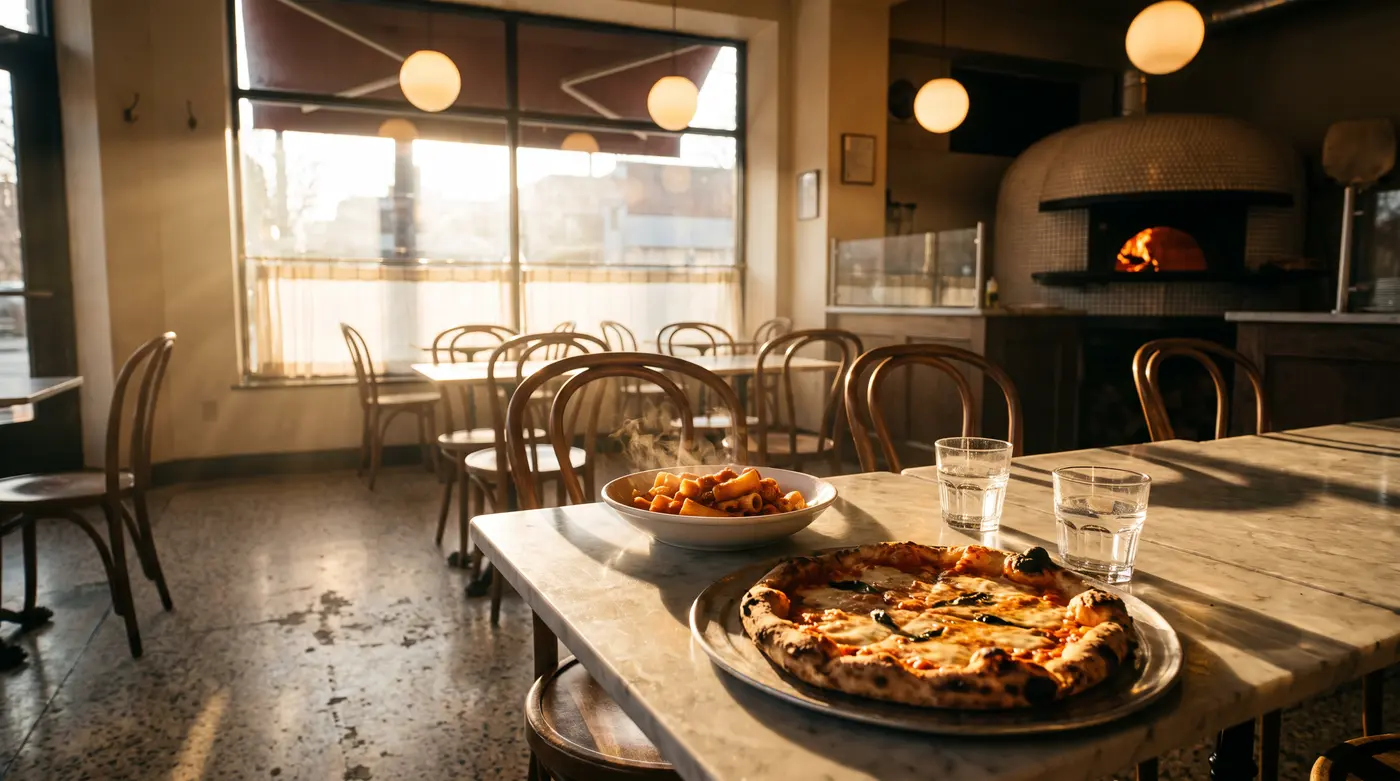
Google Business Profile photos are often the first look a diner gets at your restaurant. They show up in Google Search and Google Maps, usually before anyone opens your website, your menu, or a delivery app. Treat your Google profile like another delivery platform: the dish photos there have to sell the food on a small screen in a second or two. This guide covers Google's photo requirements, which photos a restaurant needs, how to add photos and menu items, and how to turn quick phone photos into clean, accurate images with PlatePhoto.
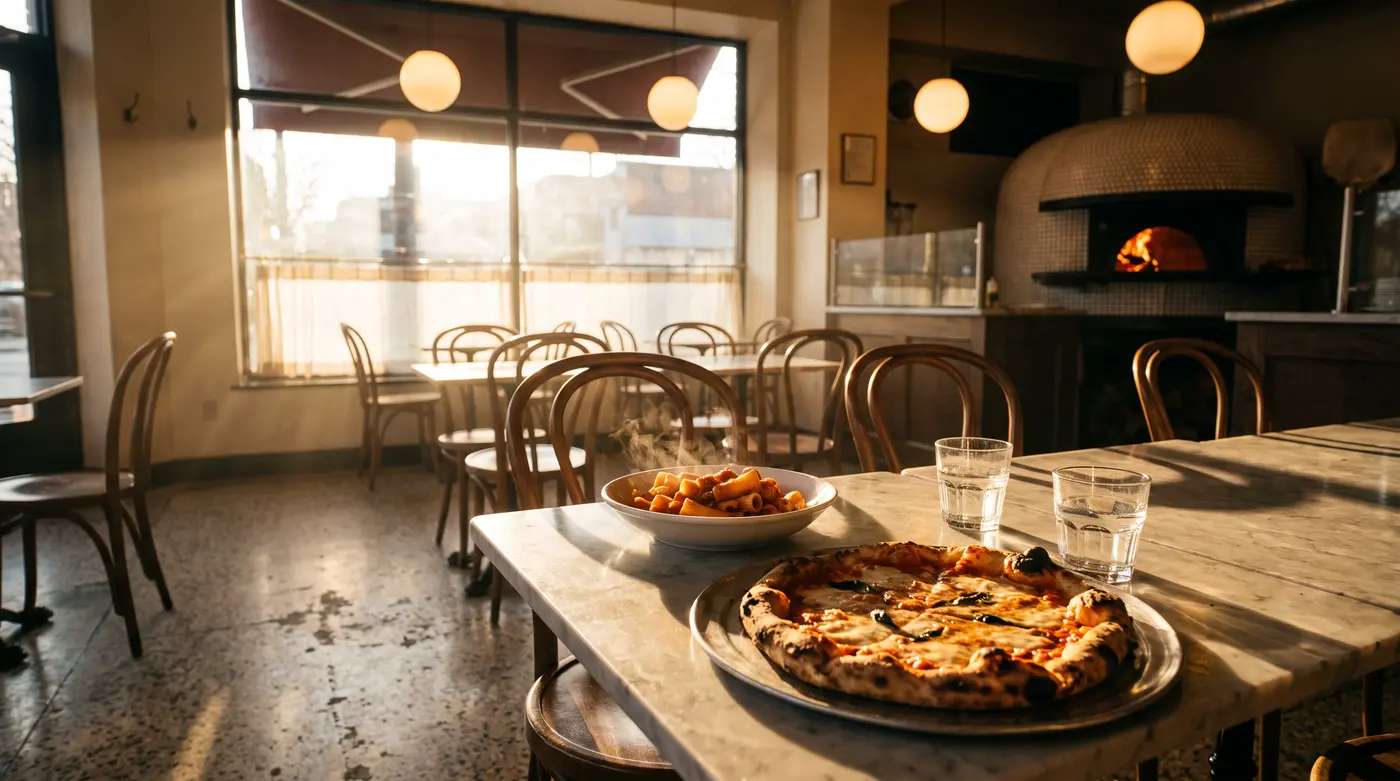
Why Google Business Profile Photos Matter for Restaurants
When someone searches "pho near me" or your restaurant's name, Google shows a business panel with your photos, rating, hours, and menu. For a lot of guests, that panel is the decision. A few reasons the photos carry so much weight:
- They're the default gallery. Customers upload photos too, and without your own photos, a dim flash shot from a Friday night may be the first image people see.
- They answer practical questions. Is it casual or dressy? Is there outdoor seating? What does the signature dish actually look like? Good photos answer these questions so people don't have to call.
- They work like a menu. Dish photos in Google Maps drive the same "I want that" moment that menu photos drive on DoorDash and Uber Eats.
Google Business Profile Photo Requirements
According to Google's Business Profile photo guidelines, photos should meet these specs:
- Format: JPG or PNG.
- File size: between 10 KB and 5 MB.
- Recommended resolution: 720 × 720 pixels.
- Minimum resolution: 250 × 250 pixels.
- Quality: in focus and well lit, with no significant alterations or excessive use of filters. Google says the image should represent reality.
- Videos: up to 30 seconds, up to 75 MB, and 720p or higher.
Google doesn't publish a separate cover photo size. Most guides recommend a 16:9 landscape image (1024 × 576 pixels or larger) because the cover is shown in a wide frame, and some places crop it to a square. Keep the main dish near the center so it survives either crop.
Food, drink, interior, and exterior photos: square or 4:3, at least 720 × 720 px. Cover photo: 16:9, around 1024 × 576 px or larger, with the subject centered. Logo: square, at least 250 × 250 px. All photos: JPG or PNG, 10 KB–5 MB.
The Photos Every Restaurant Profile Needs
Google groups owner photos into a logo, a cover photo, and business photos. For a restaurant, these are the business photos worth adding, roughly in order of importance:
- Food and drink: your 8–15 best sellers, each photographed on its own, plus one or two shared spreads.
- Cover photo: one image that shows what you serve and what the place feels like.
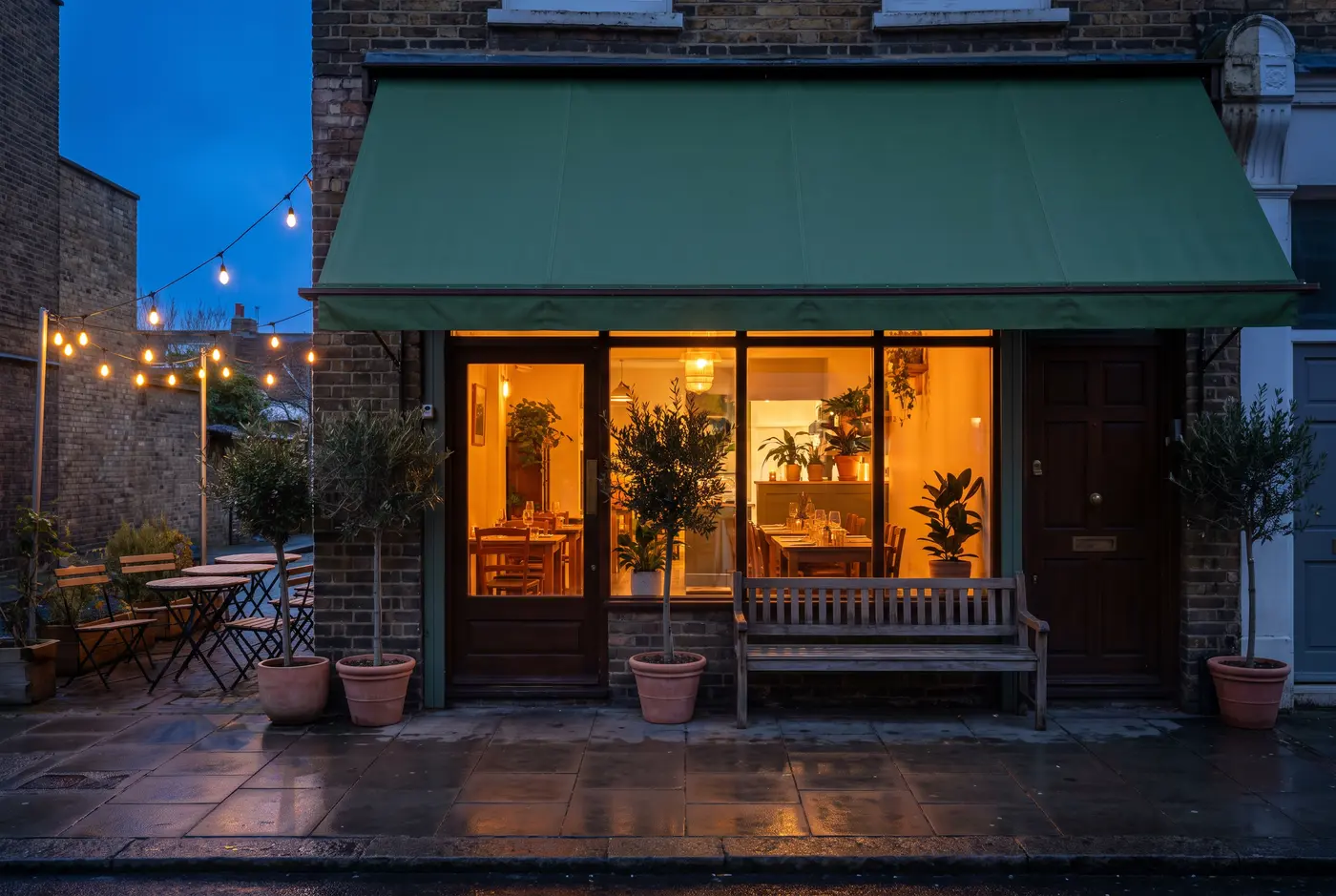
- Exterior: the front of the building as people see it when they arrive. Google notes that exterior photos help customers recognize your business.
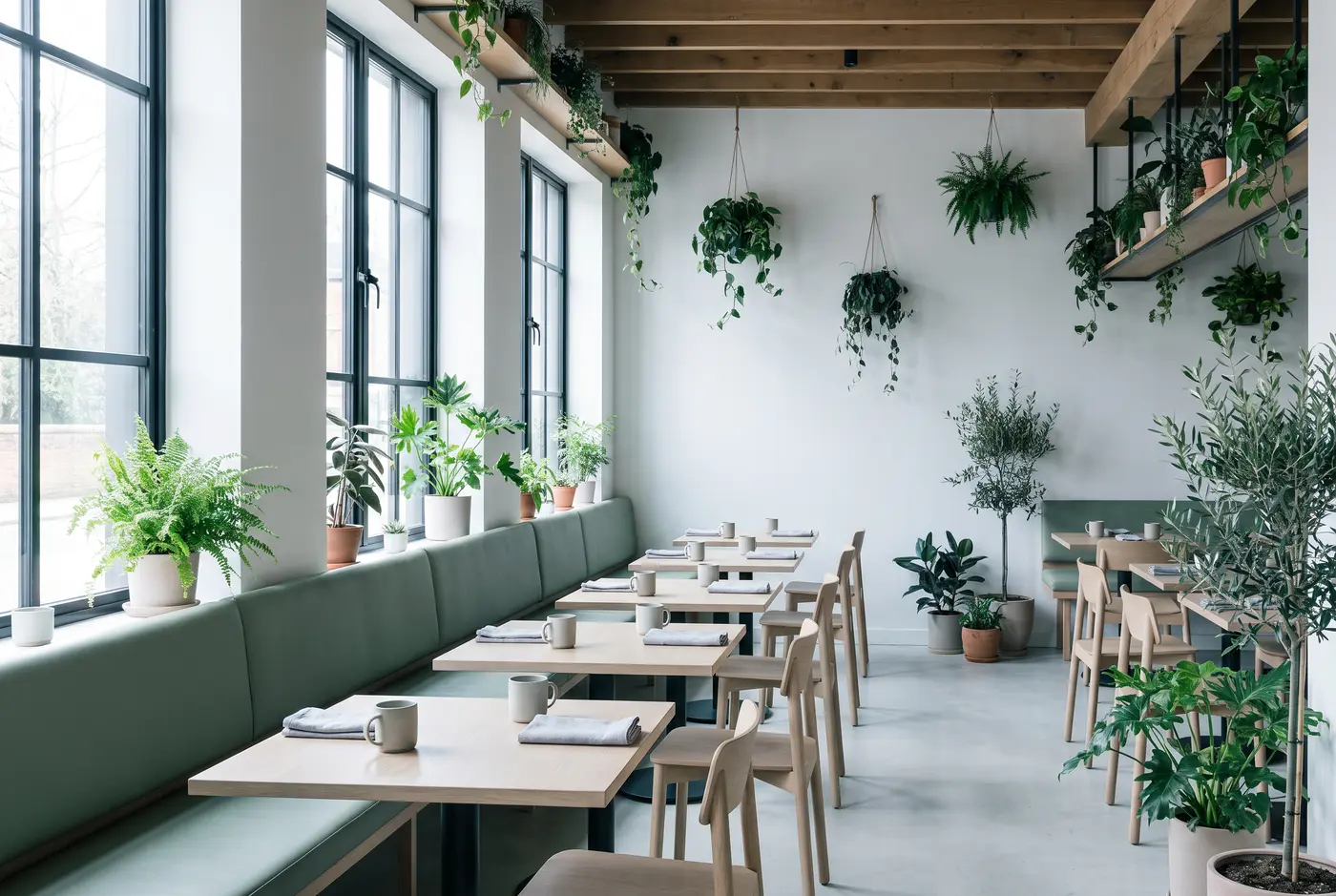
- Interior: the dining room, bar, or patio, ideally in daylight and from a corner so the whole space is visible.
- Logo: a clean square version of your logo.
- Menu: a photo or PDF of the current printed menu, plus menu items with photos if you use Google's menu editor.
Food Photos That Work on Google Maps
Dish photos on Google are seen as small thumbnails first, then full screen on a phone. The same rules that get photos approved on delivery apps work here, with one difference: on Google you can, and should, show your restaurant behind the food.
- Shoot at your own tables. A real table surface and a blurred dining room tell diners where they'll be eating. Delivery apps want neutral backgrounds; Google rewards context.
- Use window light. Soft daylight from the side makes sauces, steam, and crispy edges look right. Turn off the flash. Our food photography lighting guide covers simple setups.
- Square crops for single dishes. Frame each dish so it fills the middle of a square, with a little room around the plate.
- Overhead for spreads. Shared plates, pizzas, and bowls read best from directly above.
- Match the menu exactly. The portion, garnish, and plate in the photo should be what people get. This matters more on Google than anywhere else, because customers post their own photos next to yours.
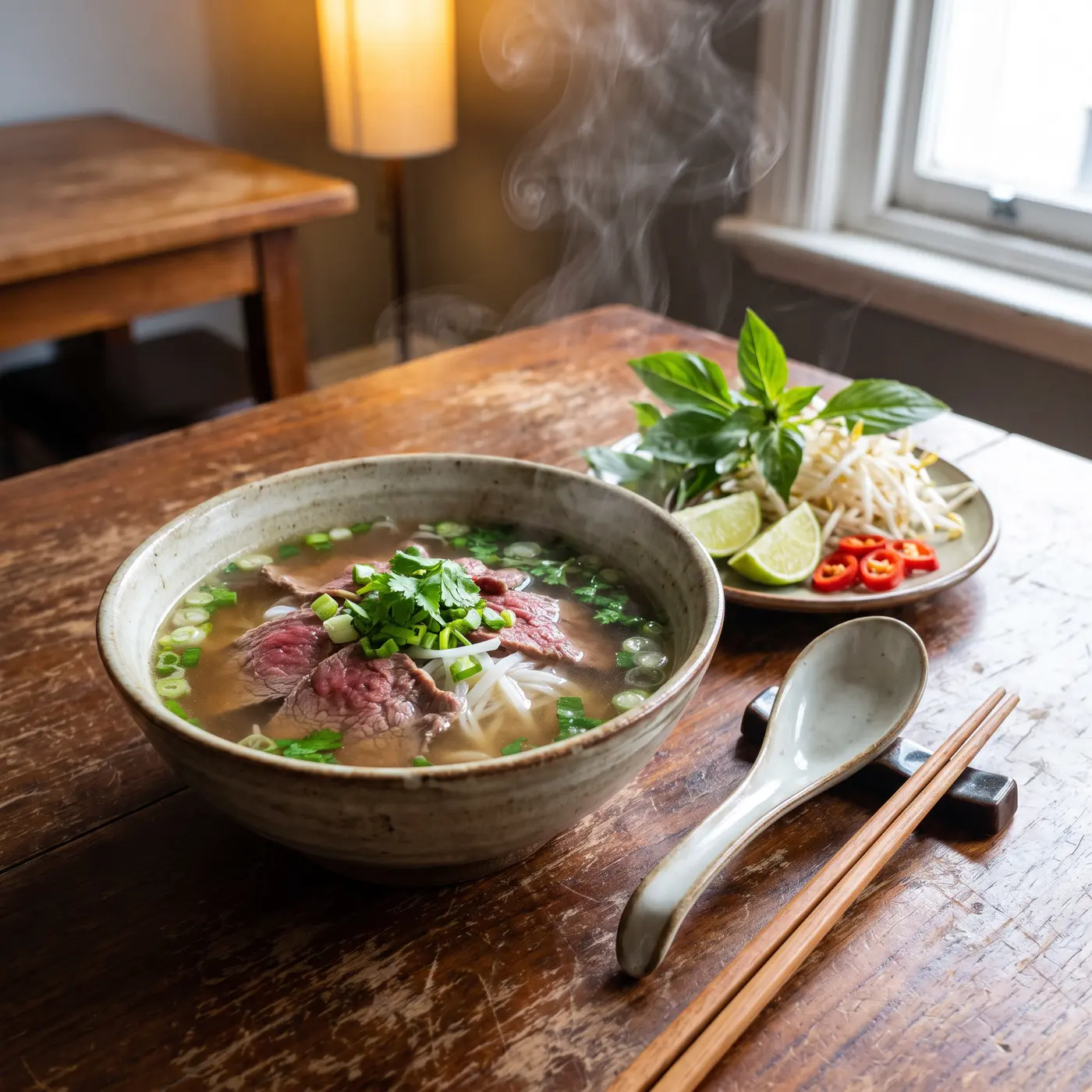
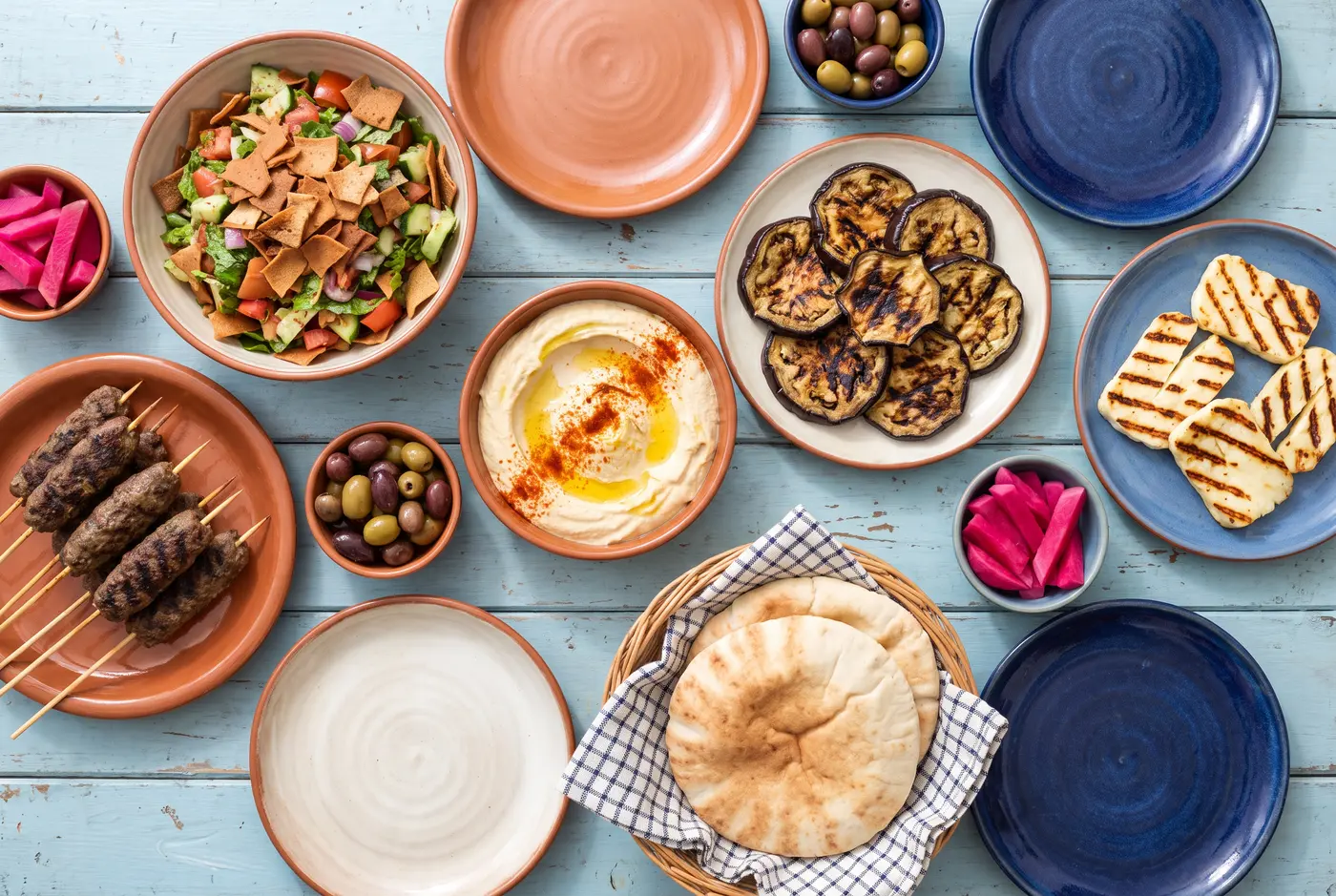
For more on angles, styling, and backgrounds, see our pillar guide to food photography.
How to Create Google Business Profile Photos with PlatePhoto
Most restaurants already have the raw material: phone photos of dishes taken during service. They're just dim, yellow, or cluttered. PlatePhoto turns those into clean, consistent Google Business Profile photos without a photoshoot.
- Photograph the real dish. Plate it the way you serve it and take a quick phone photo. Any light will do.
- Upload it to PlatePhoto. Pick a restaurant style that fits your room, such as Cafe, Bistro Evening, Terrace Lunch, or Family Table, or a clean background style if you want the same photo for delivery apps.
- Choose the shape. Use 1:1 for food and drink photos and 16:9 for the cover photo.
- Pick the mode. Enhanced gives the most polished result. Realistic leaves the food itself as untouched as possible, which is useful for dishes where texture and portion are the selling point.
- Export as JPEG and upload. A 1K or 2K JPEG is well above Google's 720-pixel recommendation and is normally well under the 5 MB limit.
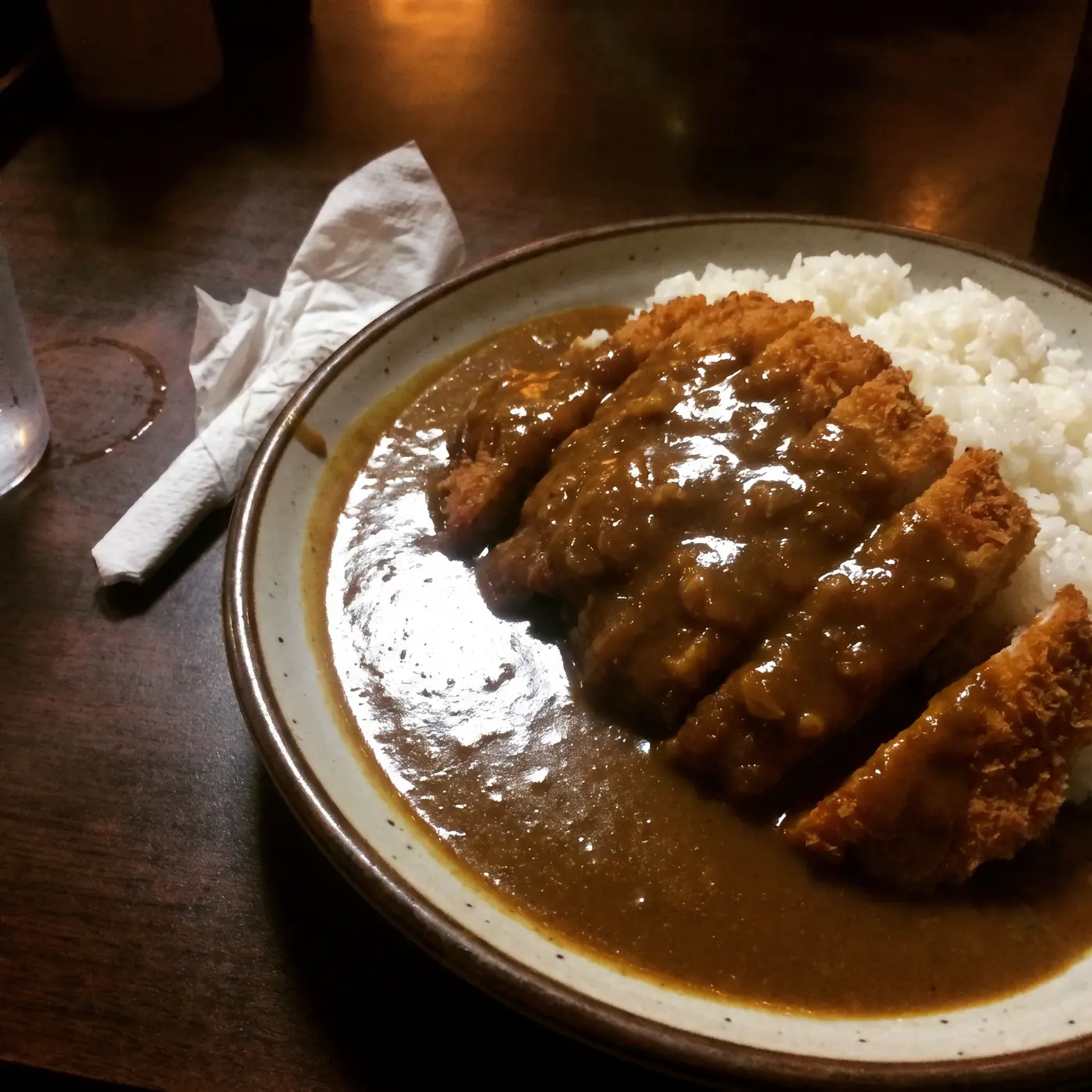
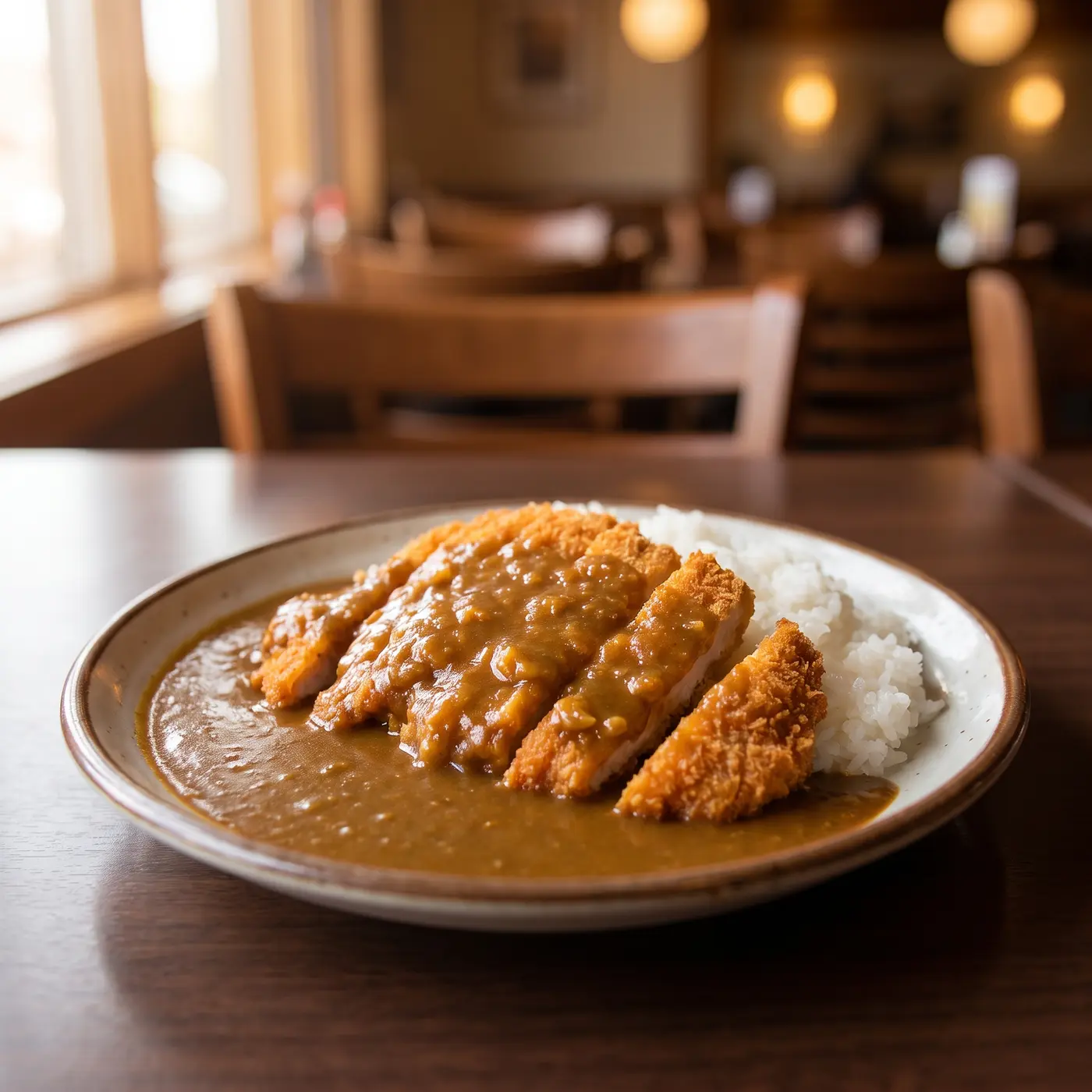
Google asks for photos that represent reality, without significant alterations. Always start from a photo of the dish you actually serve, keep the portion and plating the same, and don't generate dishes that aren't on your menu. Use a regular camera for exterior, interior, and team photos.
Because the same upload can produce a square Google photo and a neutral-background version, one shoot can cover your Google profile and your delivery listings. See our food delivery app photo guides for DoorDash, Uber Eats, Grubhub, and more, or use the free image resizer to crop one photo for every platform.
How to Add Photos to Your Google Business Profile
Your profile has to be verified before photos appear. From a computer, per Google's instructions:
- Open Google Search or Google Maps and search for your business name and city.
- In your Business Profile, click Photos, then Add photos. For a logo or cover photo, choose Add a logo or Add a cover photo instead.
- Select your files. You can upload several photos or videos at once.
Google reviews uploads against its photo and video policies. Each upload shows as Pending, Not approved, or Live, and it can take 24–48 hours to appear. Businesses with 10 or more locations can bulk upload photos with a spreadsheet. Google may not always show your cover photo first, so keep your other photos strong too.
Adding menu item and dish photos
Restaurants can also add photos to individual menu items. In your Business Profile, choose Edit menu, add sections and items, and once the menu is published you can attach a photo to each item. The same screen has an option to upload photos of your printed menu. See Google's menu help page for current availability. Google can also show popular dishes on your profile, using dish names and photos from you and your customers. Names you add take priority, as explained on Google's popular dishes page.
Common Google Business Photo Mistakes
- Leaving the gallery to customers. If you never upload, Google picks from whatever diners post.
- Heavy filters and text overlays. Filters break Google's "represent reality" rule, and promo text belongs in Google posts, not photos.
- Stock photos. Generic images that aren't your food or your restaurant mislead customers and can be removed.
- Outdated dishes. Remove photos of items you no longer serve. Customers notice, and they mention it in reviews.
- Uploading once and forgetting. Add new dishes, seasonal specials, and patio photos as they happen, so your profile stays current.
Google Business Profile Photos Checklist
- Logo and a 16:9 cover photo with the subject centered.
- 8–15 square photos of best-selling dishes, plus one or two overhead spreads.
- At least one exterior photo, one interior photo, and a patio or bar photo if you have one.
- A current menu, with item photos if the menu editor is available to you.
- JPG or PNG, 10 KB–5 MB, at least 720 × 720 px, in focus, well lit, and true to life.
- New photos every month or whenever the menu changes.
FAQ
What size should Google Business Profile photos be?
Google recommends 720 × 720 pixels and requires at least 250 × 250, in JPG or PNG format between 10 KB and 5 MB. For the cover photo, use a 16:9 image around 1024 × 576 pixels or larger, with the main subject centered.
Can I use AI-edited photos on my Google Business Profile?
Google asks that photos represent reality and avoid significant alterations or excessive filters. Improving the lighting, background, and framing of a real photo of your real dish keeps it accurate. Generating dishes you don't serve, or photos of a restaurant that isn't yours, does not. PlatePhoto starts from your own photo of the dish for this reason.
Why aren't my photos showing on Google?
Photos only appear on verified profiles, and each upload is reviewed first. It can take 24–48 hours to go live. If a photo shows as Not approved, check that it is in focus, well lit, free of text overlays, and an accurate picture of your business.
How many photos should a restaurant have on Google?
Google doesn't set a number. A practical starting point is a logo, a cover photo, 8–15 dish photos, and a few interior and exterior shots. After that, adding a few new photos each month keeps your profile ahead of customer uploads.
Make your Google Business Profile photos look professional
Upload a phone photo of a real dish and PlatePhoto relights it, cleans up the background, and exports square or 16:9 JPEGs ready for Google.
Read Next
Continue exploring our latest guides and tips
Foodpanda Photo Guidelines for Faster Approval
Follow foodpanda's photo guidelines and best practices to format crop safe menu photos, speed up publishing, and boost your conversion rates.
Read articleUber Eats Photos: Requirements & Photoshoot Guide
Uber Eats photos that get approved: photo requirements, how to plan an Uber Eats photoshoot in natural light, and how to upload images to your Uber Eats menu.
Read articleZomato Photo Guidelines for Restaurant Menus
Follow Zomato's photo guidelines and listing rules with a step by step checklist that helps you upload crop safe menu photos and get more orders.
Read article